
The following procedure explains how to schedule an MSS blackout. All blackouts use properties on the Blackout Information page. Although you can create blackouts without first configuring tasks, blackouts require tasks in order to take effect. A single blackout can be used by several tasks at once.
For more information, see the subsections below:
You can schedule tasks in conjunction with blackouts; for more information, see MSS Task References below or Scheduling a Task.
The following examples illustrate two basic, common ways to configure a blackout. For simplicity, neither example shows MSS task or GNS address references.
The following configured blackout, if applied to one or more references, executes Monday, Tuesday, Wednesday, Thursday, and Friday from 5:00:00 PM to 8:00:00 AM for an undefined duration. If this blackout were referenced by an MSS task and/or GNS address, the respective references would appear in the two fields at the bottom of the Blackout Information property sheet.
The following configured blackout, if applied to one or more references, executes on every date specified from 5:00:00 PM to 8:00:00 PM until the latest date specified has passed. If this blackout were referenced by an MSS task and/or GNS address, the respective references would appear in the two fields at the bottom of the Blackout Information property sheet.
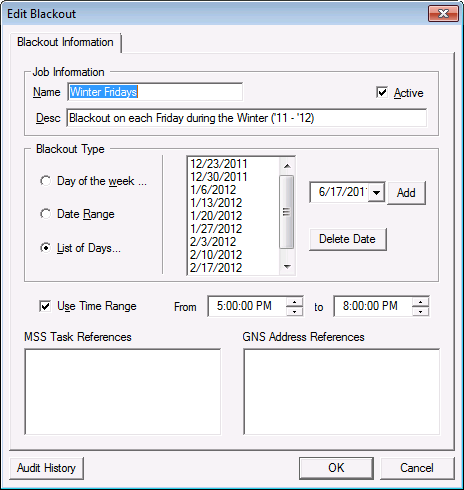
The following table lists and describes properties of the Blackout Information page.
| Property | Description |
|---|---|
| Job Information | |
|
Name |
The user-defined name of the blackout. |
|
Active |
Check to select/clear the Active status of the task. |
|
Desc |
A description of the blackout. This parameter is optional. |
| Blackout Type | |
|
Day of the week… |
Select this option to configure a blackout for certain days of the week. Use in conjunction with Use Time Range to specify times during which to apply blackouts. |
|
Date Range |
Select this option to configure a blackout for a specific date range. Use in conjunction with Use Time Range to specify times during which to apply blackouts. |
|
List of Days… |
Select this option to configure a blackout for a list of specific dates. Use the date drop-down menu to Add dates to the list. Use in conjunction with Use Time Range to specify times during which to apply blackouts. |
| Other Options | |
|
Use Time Range |
Check this option to apply a specific time range to the dates selected in the Blackout Type area. Select the desired time ranges from the From and to controls. Note: CygNet stores data in Coordinated Universal Time (UTC), also known as Greenwich Mean Time or GMT. The MSS blackout time range settings (in UTC) correspond to UTC times after a region changes to Daylight Saving Time (DST) and must be manually adjusted by one hour to match the non-DST time ranges. |
|
If this blackout has been assigned to one or more MSS tasks, the task name(s) appear here. For more information, see Blackouts. |
|
|
If this blackout has been assigned to one or more GNS addresses, the address name(s) appear here. For more information, see Notifications. |
|

|
|
|

